
Documentation
Ruijie Gateways
NettPortal supports Ruijie / Reyee EG gateways alongside MikroTik. You link the gateway through Ruijie Cloud (no Winbox WireGuard command), then use Make Live so guests see your NettPortal captive portal and vouchers authenticate over RADIUS.
Video: How to add a Ruijie / Reyee gateway
Watch on YouTubeMikroTik or Ruijie?
MikroTik: Winbox + one provision command + WireGuard. See Router Setup.
Ruijie / Reyee: Cloud ISP API credentials → pick your gateway → Link → Make Live. Same vouchers, packages, and payments — different connection path.
What you need
- A Reyee EG gateway (and usually an AP for guest Wi‑Fi) registered in Ruijie Cloud.
- Cloud App ID and Secret from Ruijie Cloud ISP → API Authorization (created on your own account — see steps below).
- Guest SSID set to Open (no WPA password) so login happens on the captive portal, not Wi‑Fi encryption.
- For full RADIUS + NettPortal portal: gateway on a ReyeeOS version that supports external RADIUS (NettPortal shows RADIUS supported when you pick the device).
Step 1 — Get App ID & Secret (Cloud ISP)
You create credentials yourself in Ruijie Cloud. You do not need to email Ruijie for API access if Cloud ISP is available on your account.
Self-serve · no email required
Get App ID & Secret in Ruijie Cloud ISP
Credentials are created on your own Ruijie account. Switch to Cloud ISP, open API Authorization, then create an application with the details below.
- 1
Open Ruijie Cloud and switch platform
Log in to Ruijie Cloud. In the top-right, hover your account / logo menu and choose Switch Between Cloud Platforms.
- 2
Select Ruijie Cloud ISP
Pick Ruijie Cloud ISP (not the standard Ruijie Cloud card), then click OK.
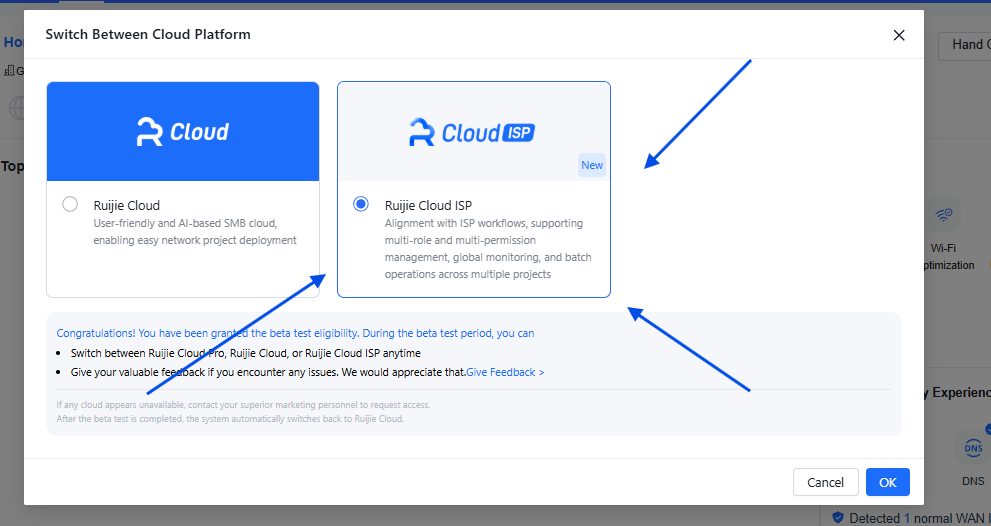
Choose Ruijie Cloud ISP, then OK - 3
Open API Authorization
In Cloud ISP, open Services → API Authorization (Cloud API).
- 4
Create the NettPortal application
Fill Application Info with the copyable values below, click Save, then copy the App ID and Secret into NettPortal.
Application Info to enter
Copy these values into Ruijie, then Save. Paste App ID and Secret into NettPortal Settings → Ruijie Cloud.
NettPortal
NettPortal
Connect Reyee EG gateways to NettPortal (https://nettportal.com) for hotspot RADIUS, captive portal, vouchers, and billing.
- Open Settings → Ruijie Cloud.
- Paste Cloud region/URL, App ID, and Secret, then Save.
Credentials are saved once per organization. You do not re-type the secret every time you add a gateway. The same guide is available under Get credentials on the Settings page.
Step 2 — Add the gateway in NettPortal
- Go to Routers → Add Router.
- Choose vendor Ruijie (not MikroTik).
- Enter a clear router name (e.g. “Kumasi Mall EG”).
- If credentials are not saved yet, enter App ID / Secret and test the Cloud connection.
- Select the Network Group (Ruijie Cloud project), then the Gateway Device.
- Check the badge: RADIUS supported (recommended) or Cloud auth (fallback for older / non-EG gear).
- Review and click Link Gateway.
There is no Winbox provision command and no WireGuard copy-paste for Ruijie. Linking uses Ruijie Cloud. Online status comes from Cloud — the gateway must show online there.
Step 3 — Make Live (RADIUS gateways)
After linking a RADIUS-capable EG, open Hotspot Setup on that router and run Make Live (or Re-push). NettPortal tells Ruijie Cloud to configure:
- RADIUS server pointing at NettPortal / FreeRADIUS
- External captive portal (WISPr) using your NettPortal login page
- Pre-auth allowlist (walled garden) so guests can reach payment and portal pages
You can re-push RADIUS only, portal only, or allowlist only if something needs a refresh. After Make Live, sell vouchers as usual — guests authenticate through FreeRADIUS.
RADIUS vs Cloud auth
RADIUS (recommended)
Guests see the NettPortal captive portal. Vouchers stay in NettPortal and authenticate via RADIUS. Best experience; matches how you sell and brand Hotspot today.
Cloud auth (fallback)
Used when the device cannot do external RADIUS. Map each NettPortal Hotspot package to a Ruijie user group under Settings → Ruijie Cloud. Vouchers sync to Ruijie Cloud; guests enter the code on Ruijie’s portal.
What works on Ruijie
- Vouchers, packages, payments, agents, and team (shared with MikroTik)
- Captive portal design (hosted; Save can re-push portal policy on RADIUS setups)
- Make Live / Hotspot Setup on supported EG gateways
- Free Access (turns off external portal policy for “everyone free” periods)
- Active Users (live Hotspot sessions; disconnect via RADIUS CoA)
- Cloud reboot from NettPortal where supported
- IP Bindings (always-online devices, no login page)
What is MikroTik-only
If your org only has Ruijie gateways, NettPortal hides MikroTik-only menus. They are not broken — they do not apply to Ruijie:
- Multi ISP (failover / load balance on RouterOS)
- PPPoE customers, profiles, packages, and sessions
- Advanced RouterOS Settings / Winbox WireGuard remote access
Mixed fleets (MikroTik + Ruijie) show both sets of tools. Always use the captive portal / payment redirect that matches the router the guest is on.
Tips for ISPs
- Prefer EG gateways with the RADIUS badge — better portal and voucher control.
- Keep the Cloud project and gateway online before Make Live or troubleshooting.
- After changing captive portal branding, re-push portal policy from Hotspot Setup if guests still see an old page.
- Name routers by site so staff pick the right gateway when selling or checking status.
- Power cuts still burn paid voucher time — use Outage Compensation when you need to credit customers.
Related docs
- Router Setup — MikroTik + WireGuard path
- Voucher Management
- Package Management
- Captive Portal — brand login after Make Live (RADIUS)
- Router Management